
Color
On this page
Our color palette
Our color palette was built to be extensive and flexible. Applying color thoughtfully and consistently helps us deliver accessible, cohesive, and recognizable experiences for our users.
Contact us if you have design system questions or visit the brand standards page if you have brand questions.
Brand red
Red is our primary brand color. Red is also a strong color, so use it as an accent, not to fill large areas.

Red orange
For danger or error states, use red orange.
Backgrounds
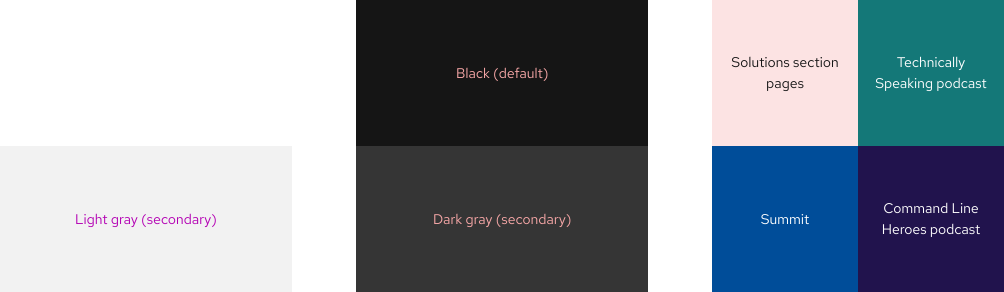
Canvas
Canvas is the bottom-most infinite container that holds all containers,
elements, etc. The default canvas colors for light and dark themes are white
and black respectively, but some gray colors can also be used.
For more bespoke websites or interfaces, other colors may be used as long as color contrast and other accessibility requirements are maintained.
Helpful tip
Elements like Card and other containers include more colors and can be placed on top of a canvas.
Surface
Surface is a container background that applies a theme to any child elements. If you need more control over the default theme in specific areas, go to the Surface element page to learn more.
Helpful tip
To learn more about theming, go to the Theming section.

Layering
Layering is stacking colors to establish hierarchy and separate content. Colors like white and black can stack if there is a gray border visible. Surface or container colors can stack if there is a layer of white or black in between.


Basic text
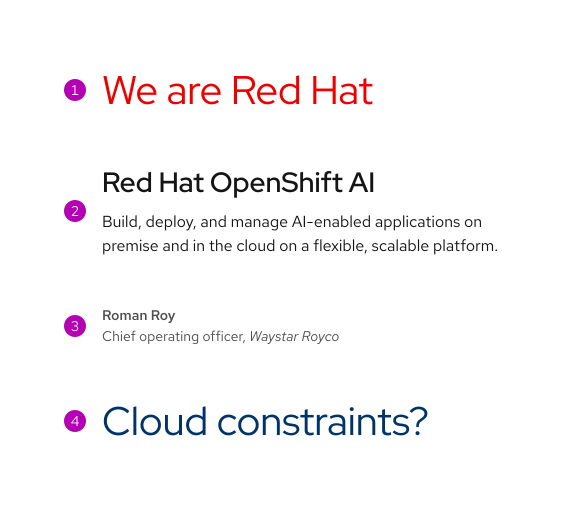
Color is applied to basic text depending on content, hierarchy, theme, and more. These are general guidelines, not all use cases are represented.
- Brand - use sparingly to add a brand accent to text
- Primary - use for headings and body text in most layouts and components
- Secondary - use for small text like captions
- Custom - use a variety of colors to advertise a campaign or bespoke experience

Icons
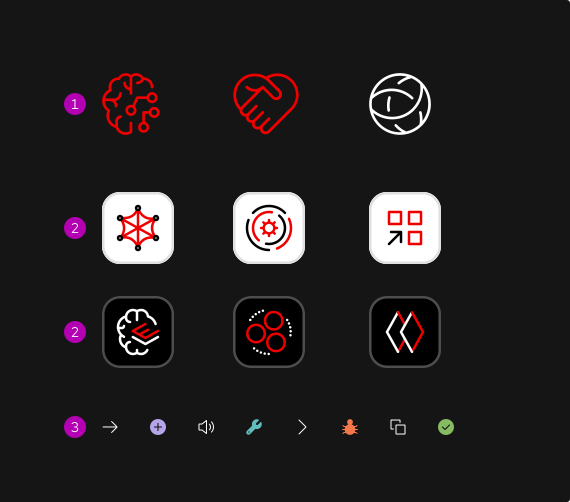
Color is applied to icons depending on category, status, theme, etc. Some icon colors will not change when switching themes. These are general guidelines, not all use cases are represented.
- Standard - monochromatic and usually red, black, or white
- Technology - always black, gray, red, and white
- UI - can be a variety of colors depending on where they are used

Interactivity
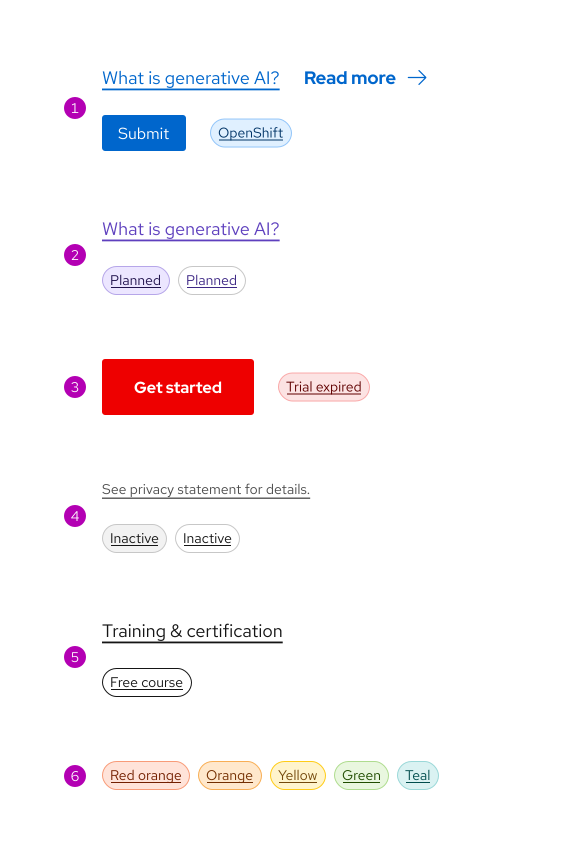
Color can be used to indicate that something is interactive or selectable. All text links require an underline except in certain rare edge cases.
- Blue - a common color used for inline links, buttons, and more
- Purple - a common color used for the visited state or linked text in certain components
- Red - use sparingly for primary calls to action or linked text in certain components
- Gray - use for secondary text, the disabled state, or linked text in certain components
- Black and white - use for linked text in navigation components or linked header text in navigation menus
- Other colors - use for linked text in components with a more broad color palette like Tag
Helpful tip
Most links have underlines for accessibility reasons, but some do not. To learn more about when to add underlines to links, contact the design system team.

Status
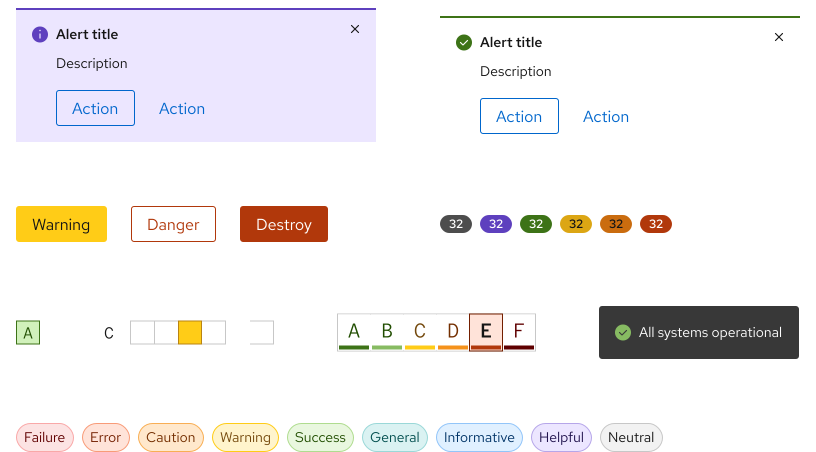
Status has its own severity levels, color palettes, and meanings assigned to each.
Helpful tip
In general, when communicating status, red and red orange are considered danger or error state colors. It is not recommended to use those colors anywhere else.
| Status name | Severity level | Status | Use case |
|---|---|---|---|
| Info | 0 |
|
|
| Success | 0 |
|
|
| Neutral | 0 |
|
|
| Warning | 1 |
|
|
| Caution | 2 |
|
|
| Danger | 3 |
|
Resources
- Brand standards
- Theming
- Iconography foundations
- Icon element
- WCAG 2.1
- WebAIM: Contrast and Color Accessibility
Best practices
Follow these guidelines and best practices as best you can.
Custom themes
If you need support for a custom theme including custom design tokens, contact us.
Place foreground elements on background colors with enough contrast.
Do not place foreground elements on background colors with insufficient contrast.
Sufficient contrast
Using colors with the same hue, saturation, and lightness is acceptable, but do not put them near or on top of each other as doing so will cause vibration resulting in a poor user experience. If you have a large section of color or an image background with low contrast, consider using elements and patterns from the desaturated theme instead.
Place foreground elements on background colors with enough contrast.
Do not place foreground elements on background colors with insufficient contrast.
Other libraries
To learn more about our other libraries, visit this page.
Feedback
To give feedback about anything on this page, contact us.
Foundations
To learn how to use our other foundations in your designs, visit the foundations section.